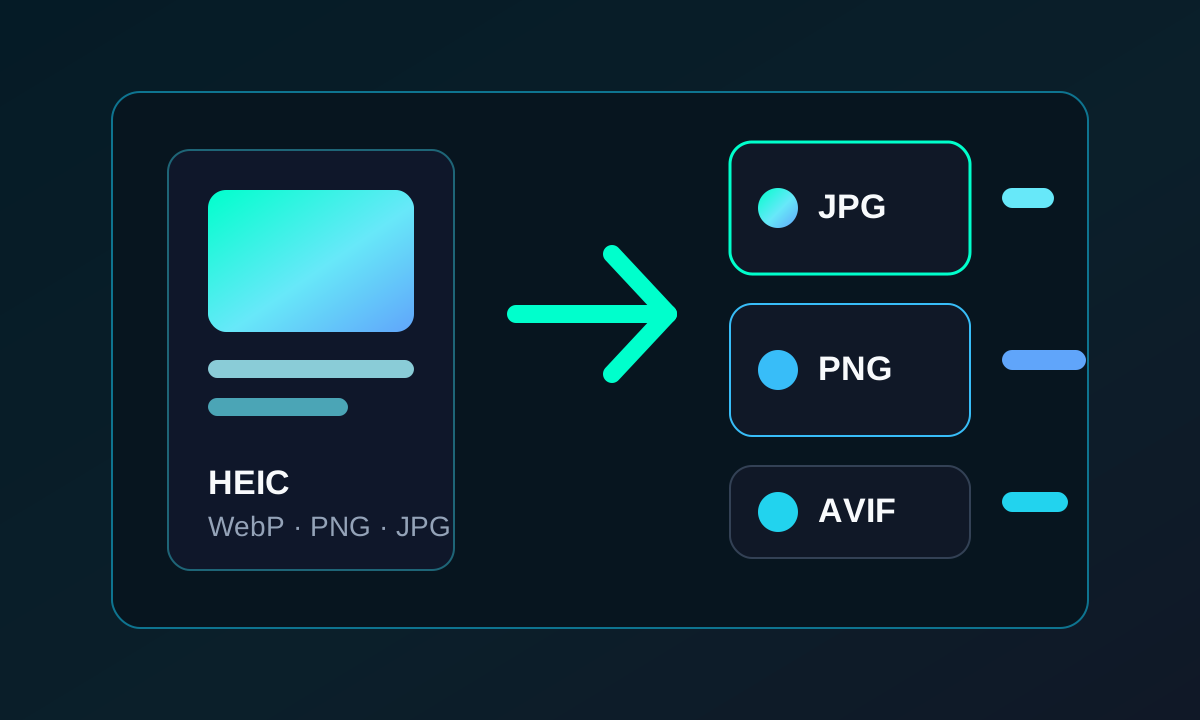
Convert HEIC to JPG Without Uploading Your Photos


Save HEIC photos as JPEG locally in your browser or with Preview on a Mac. Includes batch export, file-size checks, and reasons to keep the originals.
When a website rejects an iPhone photo, a JPEG copy may solve the compatibility problem. Simply renaming .heic to .jpg is not enough: the image must actually be converted into the new format.
A post from August 23 asks for a simple JPG conversion button. Apple already documents export options through Photos and Preview on a Mac. A browser converter offers another route, especially when you want to process several pictures together.
Convert several HEIC files in your browser
- Open the LinkLoot image converter.
- Select up to 20 images. HEIC and HEIF decoding runs locally.
- Choose JPEG and inspect the preview.
- Confirm that you may lawfully edit the images.
- Download the result. Use ZIP export when processing multiple files together.
A ZIP export counts as one operation. At the time of writing, eight conversions are free within the applicable 24-hour window; subsequent operations cost one Gem. Check the remaining allowance shown in the tool. Image contents are not uploaded to LinkLoot.
The native Mac alternative
Open the HEIF image in Preview, select File → Export, and choose JPEG. You can then adjust quality before saving. Apple also describes exporting from Photos. On supported devices, the camera's “Most Compatible” setting changes the format used for future captures; it does not retroactively convert existing photos. See Apple's HEIF and HEVC guide.
What if the JPEG is still too large?
Conversion and compression solve different problems. A JPEG output can be larger than its HEIC source. If the destination has a file-size limit, use the image compressor afterward to adjust the target size or pixel dimensions. Check the actual output size and make sure important details remain readable.
Keep the original
JPEG uses lossy compression, and repeated saves can reduce quality. LinkLoot uses only the first view of animated or multi-image files. Typical camera and EXIF metadata are not carried into the newly rendered output. The converter does not promise lossless preservation of every HEIC variant's HDR information, color profile, or auxiliary data.
If a particular file cannot be decoded, try Apple's native export and check that the original is complete. A failure with one variant does not mean all HEIC files are incompatible.
Source check — September 7, 2026: Apple, LinkLoot image converter, and the linked user report. The conversion workflow and allowance describe the current LinkLoot tool.
Try the related loot
Shorten URLs and manage feature requests with 1p.io API