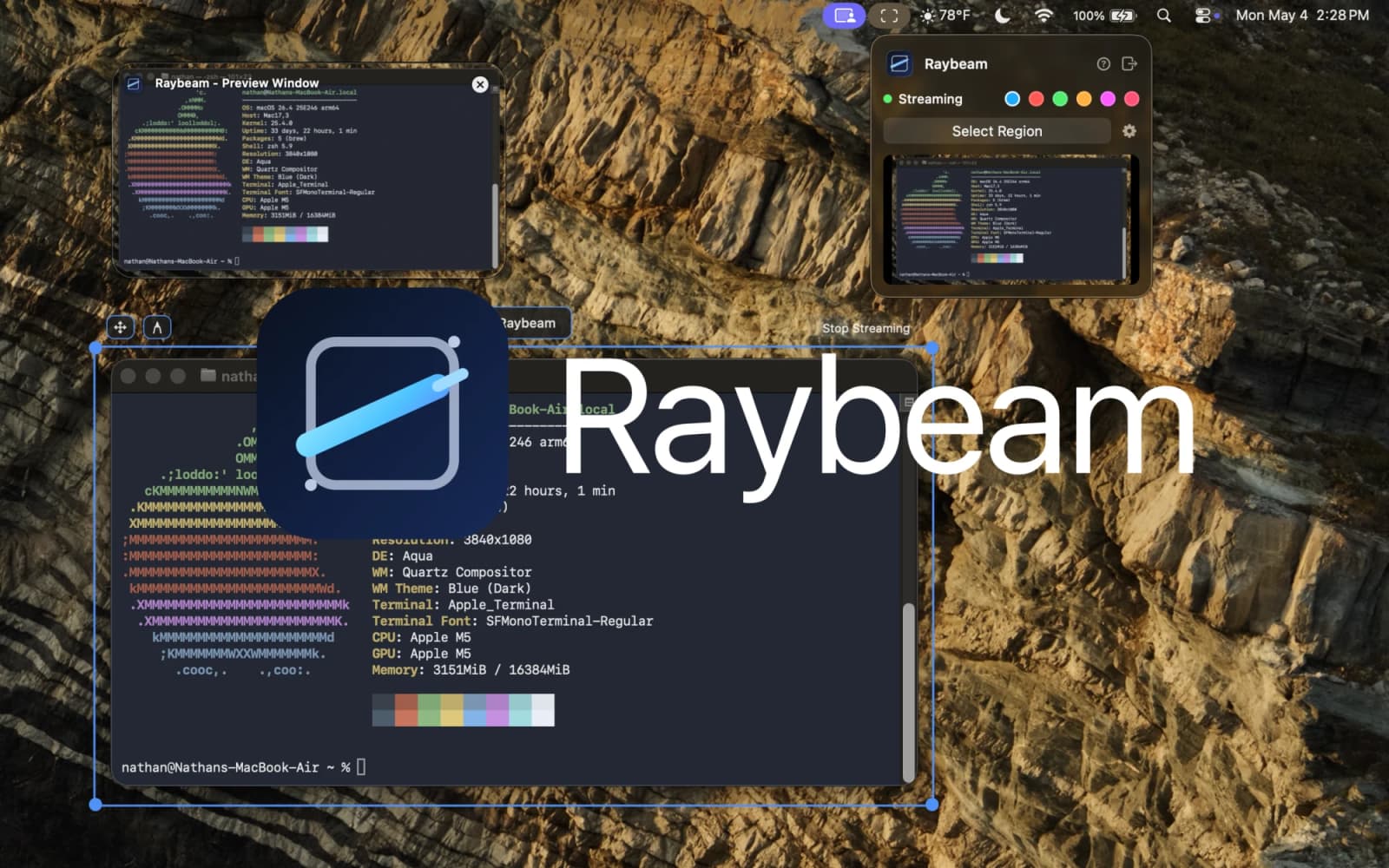
Raybeam turns awkward macOS screen sharing into a movable, resizable region


Raybeam is a new macOS screen-sharing utility that lets you share a draggable custom region instead of your whole display or a single app window.
Raybeam is a macOS app built around one clear idea: instead of sharing your whole screen or one app window, you share a draggable, resizable region that you can move during a call. The official site says it is designed for ultra-wide and multi-monitor setups, and the Show HN post explains that the tool grew out of a real screen-sharing pain point on very large displays. For people who present code, dashboards, or demos all day, that is a more practical upgrade than yet another meeting assistant.
Key takeaways
- Raybeam creates a custom screen-sharing rectangle that meeting apps can treat like a regular source.
- The app is built for macOS and emphasizes ultra-wide and multi-monitor use cases.
- The site highlights app exclusion, draw mode, hotkeys, and menu bar control as core features.
- The HN launch story makes it clear this is solving a very specific workflow problem rather than chasing a broad “future of meetings” pitch.
- Screen recording permission is required, so privacy review still matters.
Why it matters
Most video apps force a bad tradeoff: share the whole display and expose too much, or share one window and constantly switch context. Raybeam matters because it adds a third option that is more precise for live demos, remote debugging, tutorials, and creator workflows.
That is especially useful on ultra-wide monitors where standard screen sharing often makes everything unreadable for the viewer. A movable region can keep the audience focused on the relevant part of the screen without the presenter re-arranging their entire desktop.
What to verify before you act
Check whether your exact meeting stack supports the source cleanly in practice. The Raybeam site mentions compatibility with common video apps, but the real test is how well your preferred app handles frame rate, scaling, and source switching.
Also verify the privacy behavior around excluded apps and screen-recording access. The product claims only the chosen region is captured unless you make it full-screen, but teams dealing with sensitive chats or client material should test that exclusion behavior before using it in real calls.
If you present text-heavy content, test readability on the audience side. A smaller custom region is powerful, but it still needs enough resolution to stay legible in Zoom, Slack, or Teams compression.
Practical LinkLoot angle
Raybeam is one of those small workflow tools that can remove friction every single day for people who teach, sell, support, or build in public. A practical setup would be to pair it with an ultra-wide monitor, define a stable “demo lane” on the screen, then use hotkeys to adjust the shared region without breaking the flow of the conversation.
Compared with full-screen sharing, that reduces accidental exposure and usually improves viewer focus. Compared with single-window sharing, it gives you more freedom to combine a browser, terminal, notes, and slides in one controlled frame.
| Sharing mode | Best for | Tradeoff |
|---|---|---|
| Full-screen share | Quick one-click presenting | Low privacy and poor focus on ultra-wide displays |
| Single-window share | Self-contained app demos | Awkward when you need content from multiple apps |
| Raybeam custom region | Precise live demos and flexible layouts | Requires setup, permissions, and legibility testing |
If your broader workflow also includes automation around meetings, demos, or creator operations, LinkLoot’s process guide is a useful follow-up: /guides/ai-workflow-automation.
It lets macOS users share a movable custom region instead of only a whole screen or one window.
Try the related loot
Run Low-Cost, Deterministic Computer Use with TypeSafe